
Inventory & Stock
Available, reserved and sold — always accurate, across every channel.
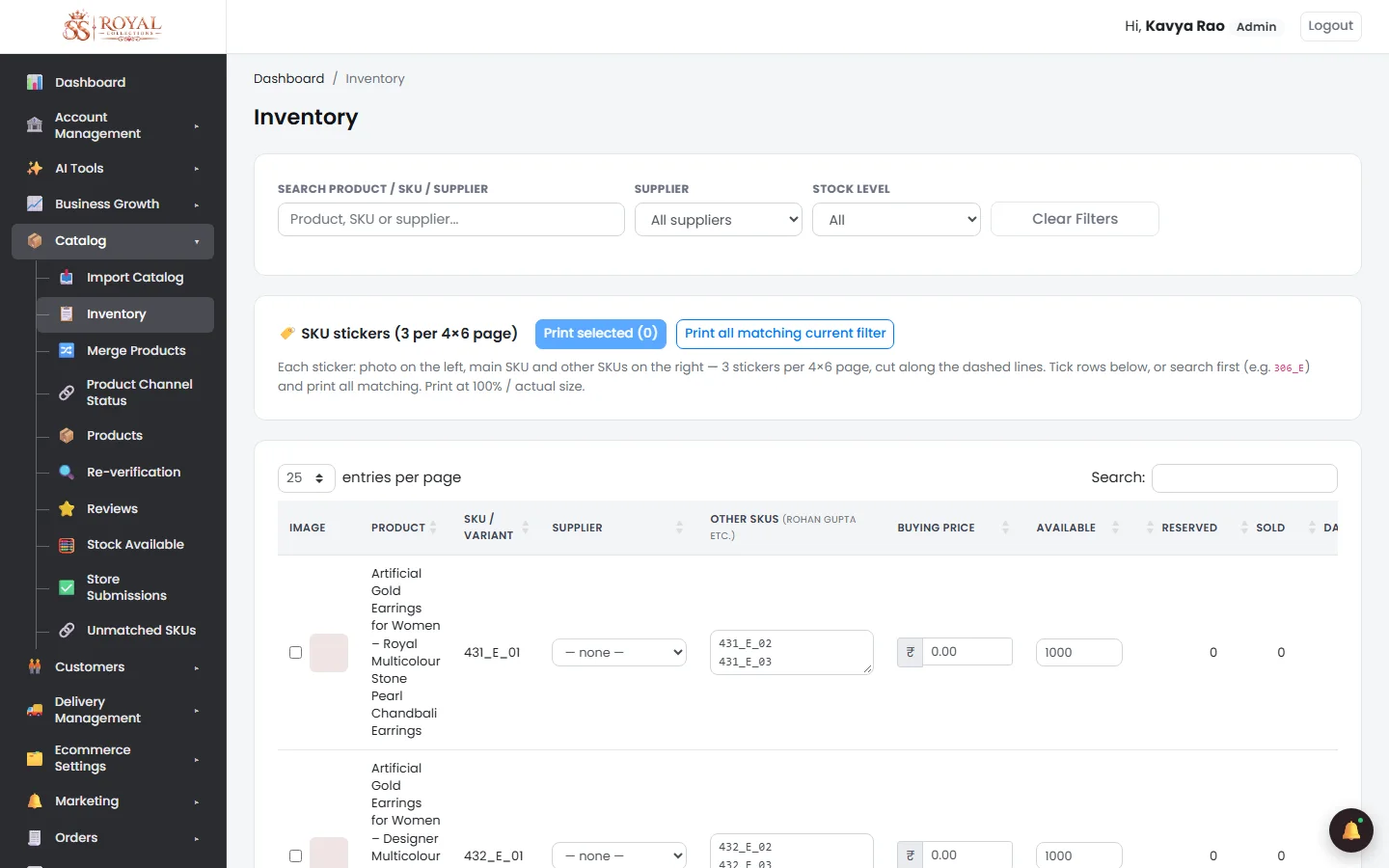
/admin/inventory Click to enlargeOn this page
Quick summaryOverviewFeaturesStep by stepKey termsAll screensBest practicesFAQPlan availabilityRelated docsQuick summary
The 30-second version of this page.
Available, reserved and sold — always accurate, across every channel.
Warehouse and stock managers.
Admin Panel → Inventory / Product Channels
#Overview
Stock reserves when an order is placed, deducts on shipment and returns on RTO or refund. See what's low, what's selling and what's sitting idle, with quick photo capture for new stock.
Warehouse and stock managers.
Admin Panel → Inventory / Product Channels
#Features
#Step by step
Follow these steps in order. The screen on the right shows where you do it.
- 1
Check levels
See available, reserved and sold quantities for every variant, with low stock highlighted.
- 2
Receive stock
Update quantities when goods arrive, or use Quick Capture to photograph new stock from your phone.
- 3
Watch channels
The channel status view shows which product is live on which marketplace.
- 4
Share a catalog
Generate a stock-available catalog for resellers that only shows what you can ship.
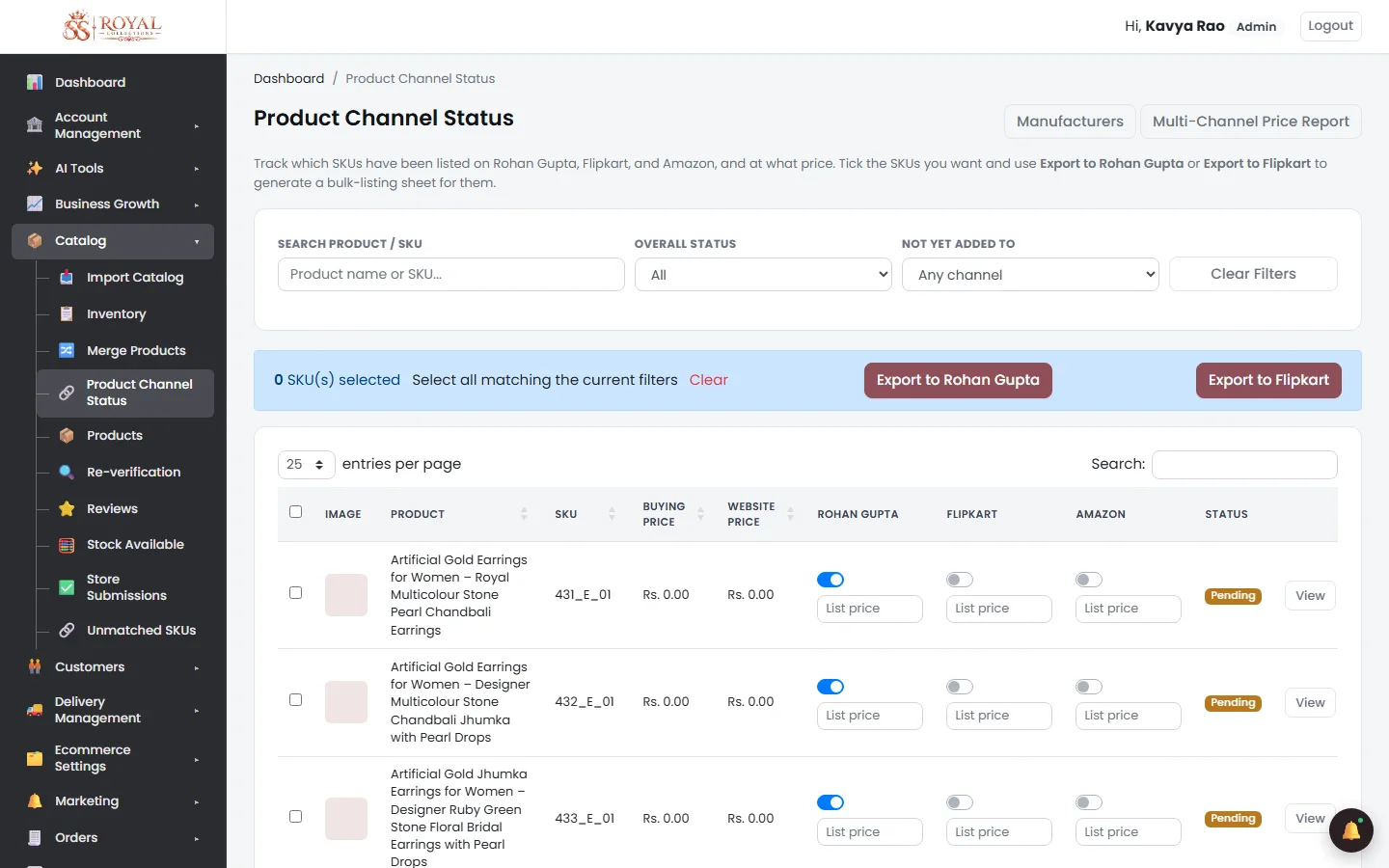
/admin/product-channels Click to enlarge#Key terms
Words you will see on these screens, explained simply.
- Available
- Stock that can be sold right now.
- Reserved
- Stock held for placed but not-yet-shipped orders.
- Sold
- Stock deducted on shipment. Returns and RTOs move it back automatically.
#All screens
Every screen in this module. Customer details are replaced with demo data.
/admin/inventory Click to enlarge/admin/product-channels Click to enlarge#Best practices
- Set a low-stock threshold that matches your supplier lead time.
- Do a weekly cycle count of fast movers and correct differences immediately.
#FAQ
Is stock shared between website and marketplaces?
Yes, once SKUs are mapped every channel draws from the same stock count.
#Plan availability
See pricing for full plan details.